What Should You Check Before Submitting a 7Games Bet?
Confirm the Exact Selection and What It Covers
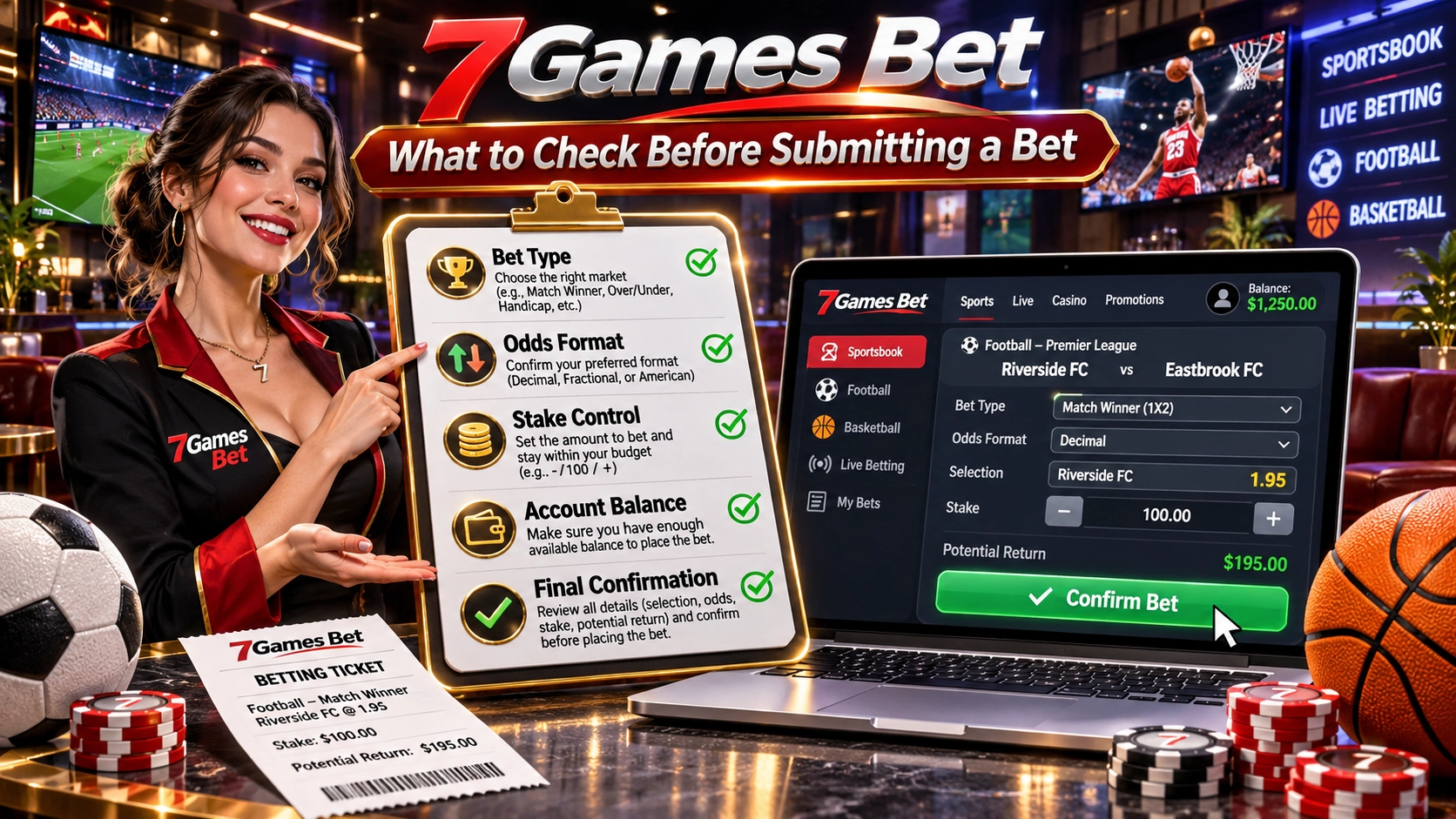
7Games Bet Read the complete selection on the review screen. If it concerns an event, check the event name, the market, the outcome you selected, and the period covered. If it concerns a game round, check the game title, the round information if shown, and the action you selected.
In a hypothetical example, two entries both show “Team A,” but one covers the full match and the other covers the first half. If Team A leads at halftime and the match ends in a draw, the two entries refer to different results. I’d check the period on the review screen even when the team name matches what I intended to select.
For a game, use the same approach if two controls show the same amount. In a hypothetical round, an opening action and an optional continuation could each cost 2 units. The amount matches, but the action you’re about to submit determines which rules apply.
Read the Settlement Rule for That Selection
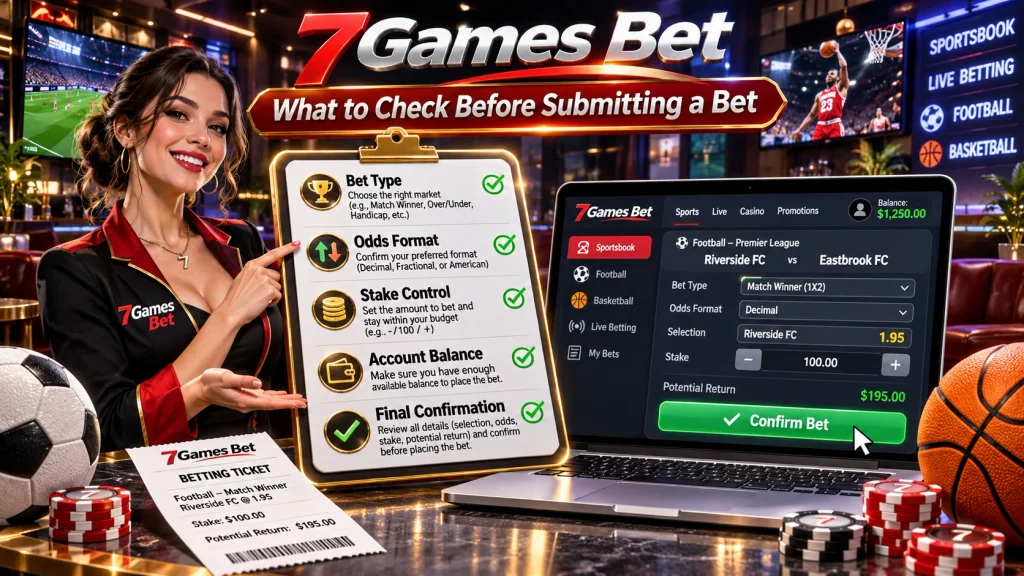
Find the rule that explains how the selection is settled. For an event, check which result counts and how the rules handle a postponement or cancellation. For a game round, check what ends the round and what the rules say about an interruption.
Suppose a hypothetical match selection shows a team name and a price but leaves the treatment of extra time to the market rules. If the match is level at the end of regulation and the team wins in extra time, the settlement depends on which period the selection covers. Look for that definition in the rules attached to the exact market you selected.
If a game displays an intermediate result, read whether the rules settle the round at that point or require another action. If the round can end either way, check what happens when you continue, when you stop, and when any decision window expires.
How Can You Check the Stake and Expected Return?
Add Up Every Active Selection
Open the review screen and count the entries still active. If two independent selections each carry a stake of 5 units, the total amount committed in that example is 10 units. If the screen groups several selections under one shared stake, check the stated submission type and total before deciding how much you’re committing.
| Hypothetical review screen | How to read the stake | Total committed |
| One active entry with a 5-unit stake | One entry carries the displayed stake | 5 units |
| Two separate entries, each with a 5-unit stake | Add the two individual stakes | 10 units |
| Multiple selections grouped under one 5-unit stake | The example screen identifies 5 units as the total for the group | 5 units |
On a phone, expand any collapsed list before checking the total. If you added a second selection while comparing options, check whether the first is still active.
Check the Unit and What the Return Includes
Read the unit next to the amount. If it’s expressed in credits, check the stated value of one credit. For example, a hypothetical stake of 50 credits would cost 5 currency units at 0.10 units per credit.
Next, read the return label. If a 10-unit stake shows a potential total return of 18 units including the stake, the potential net gain is 8 units if the selection settles as a win. Check the label before comparing that figure with a screen that shows potential profit separately.
Recheck the Total When a Value Changes
Identify which field changed before confirming. If the total stake rises from 5 to 10 units, review the active entries and the amount assigned to each. If the stake stays at 10 units while the estimated return drops from 18 to 16 units, check the displayed price and any prompt explaining the update.
In either hypothetical case, compare the latest review screen with your intended selection, stake, and return. If the screen asks you to confirm updated values, read the updated figures before acting on the prompt.
What Should You Review on the Final Screen?
Check that the final screen shows the selection, amount, and terms you intend to submit. On a phone, expand any collapsed list first so you can see what contributes to the total.
Match the Review Screen to Your Intended Action
| Field | What to check before confirming |
| Selection | The exact outcome or game action you selected, including any other active entries |
| Period or round | The part of the event or the game round covered by the selection |
| Total stake | The full amount the screen shows for this submission |
| Amount unit | Whether the stake is shown in currency or credits |
| Estimated return | The latest figure and whether it includes the original stake |
Suppose a hypothetical mobile review screen shows a 10-unit total, while the visible entry shows a 5-unit stake. Expanding the list reveals a second 5-unit entry left over from an earlier comparison. If you intended to submit only the visible entry, check whether you can remove the extra selection and confirm that the updated total reflects the change.
Read Any Prompt That Appears Before Confirmation
Read which field the prompt refers to and whether the screen is asking you to accept a change. Then check the updated review details before making that decision.
In a hypothetical example, the selection and 10-unit stake stay the same, but a prompt displays a revised potential total return of 16 units. If the return includes the stake, the potential net gain is now 6 units if the selection wins. I’d check that the screen still shows the intended selection and period before deciding whether to confirm the revised terms.
How Can You Tell Whether a Bet Was Accepted?
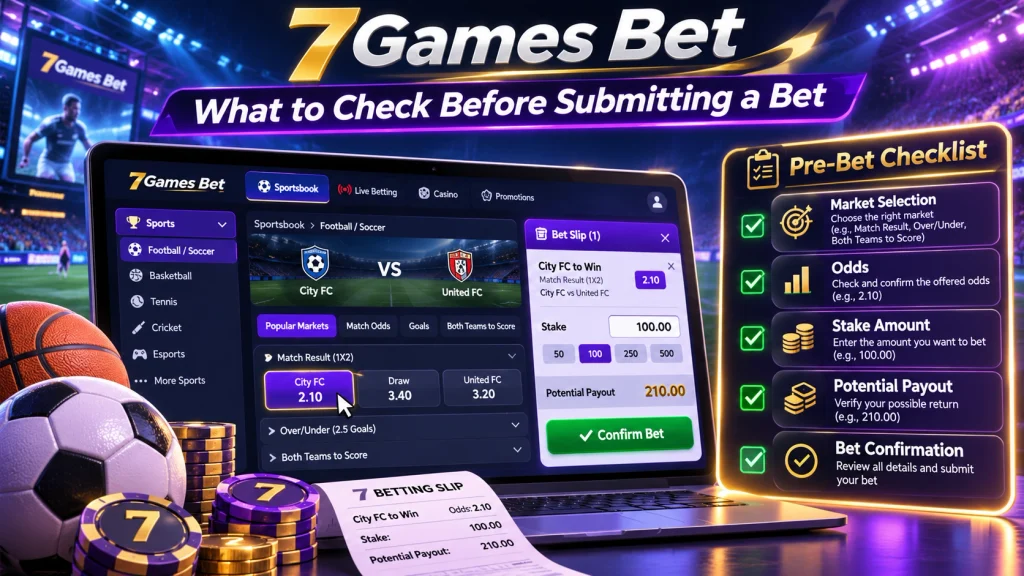
After submission, look for a confirmation or record that matches the action you took. Read how the service defines any status you see, especially if the screen still shows a loading indicator or asks you to complete another step.
Distinguish Selection, Submission, and Acceptance
| Stage | What you might see | What you can establish |
| Selected | An active entry with a stake or denomination | Which option and amount are currently selected |
| Submitted | A message acknowledging the request or an entry in the activity record | Whether the service recorded the request and what status it assigned |
| Accepted | An explicit acceptance message or a record with a status the service defines as accepted | Whether the matching submission was accepted |
| Settled | A result and any amount credited or returned | How the accepted selection was resolved under its rules |
These are example stages. If a message only says “Submitted,” check whether the service uses that label for a request awaiting review or for a completed submission. The status explanation tells you which meaning applies.
Match the Available Record to the Original Submission
Check the full selection, period or round, stake, time, and reference number where available. When you see more than one entry for the same amount, compare the details that identify the original action.
Suppose a hypothetical history shows two 5-unit entries for Team A. The 8:15 p.m. entry covers the first half, and the 8:17 p.m. entry covers the full match. If the screen froze after you submitted the first-half selection, check the 8:15 p.m. entry and its reference. The team name and stake alone would match both records.
If the record confirms acceptance but has no result yet, check the settlement instructions for that selection. Acceptance answers whether the service took the wager. Settlement answers what happened to it afterward.
What Should You Do If the Screen Freezes After Submission?
Check the original action before trying again. What you look for depends on the last message you saw.
Check the Existing Record Before Trying Again
| Last thing you saw | What to check when the page is available again |
| A loading screen after submission | Look for a matching entry by selection, stake, and time. Check its status if one appears. |
| An acceptance message | Find the matching reference or activity record and check whether you’re waiting for settlement. |
| A record with an unclear status | Read the service’s definition of the status or ask support to clarify that specific entry. |
If the history is blank or unavailable, record what happened and follow the published help instructions before resubmitting. If a balance change is visible, include it in your notes alongside the time and amount so support can compare it with the original request.
Ask Support About the Original Action
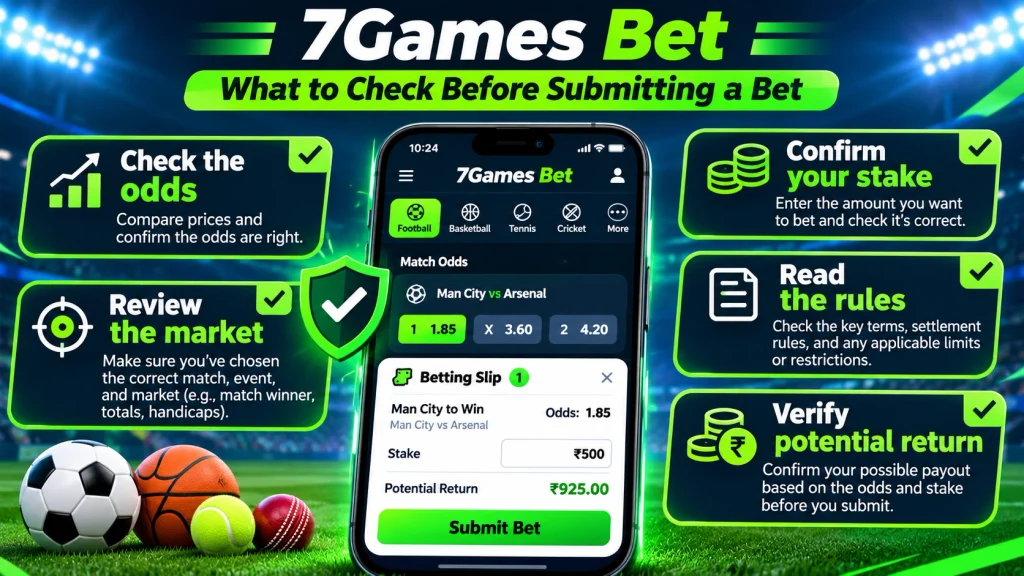
Describe the selection, stake, approximate time and time zone, and the last message you saw. Add a reference number if one appeared. Here’s a complete hypothetical support message:
At about 8:15 p.m. Manila time, I submitted a 5-unit selection for Team A in the first-half market. The screen stayed on “Loading,” and I did not see an acceptance message or reference number. Could you check whether that submission was recorded and tell me where to see its status?
If a record appears while you wait, add its reference and displayed status to the same request. If you share a screenshot, crop it to the relevant entry and keep passwords, one-time codes, and unrelated account details private.
FAQ
What Should I Check Before Submitting a 7Games Bet?
Check the exact selection, the event period or game round it covers, the settlement rule, and the total stake across all active entries. On a phone, expand any collapsed list so you can see every entry included in the total.
How Can I Tell Whether the Displayed Return Includes My Stake?
Read the label beside the amount and check how the rules define it. In a hypothetical example, if an 18-unit total return includes your 10-unit stake, the potential net gain is 8 units if the selection wins.
What Should I Check If the Amount Changes Before Confirmation?
Identify which figure changed. If the total stake changed, check the active entries and the amount assigned to each. If the stake stayed the same but the estimated return changed, check the displayed price and read any prompt before confirming.